
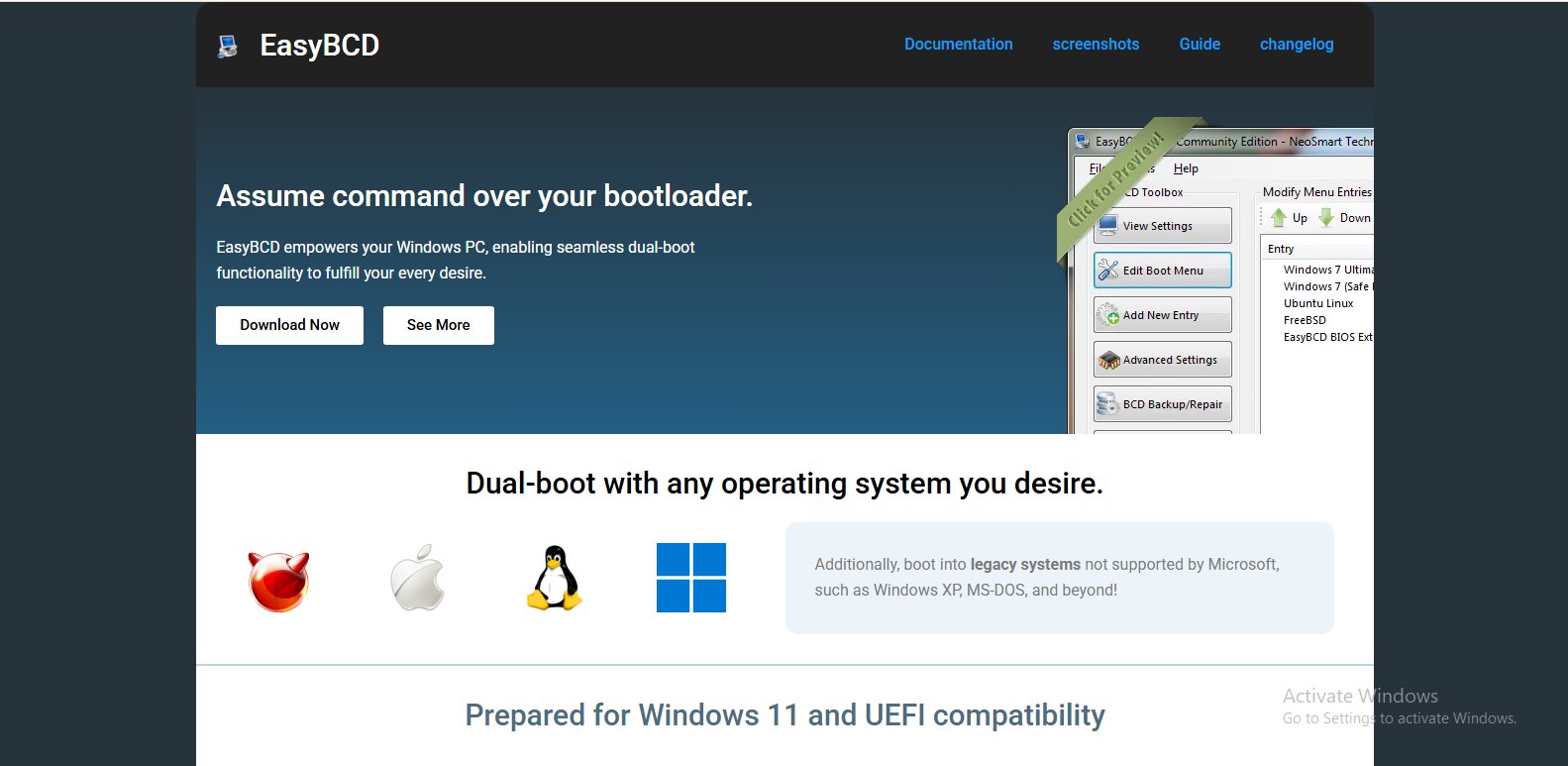
Modern computers often run more than one operating system or require advanced boot configurations to manage recovery tools, Linux installations, or troubleshooting environments. In such situations, users frequently face one common challenge: how to control and customize the boot menu. This is where a tool like EasyBCD becomes relevant. EasyBCD is widely known for its ability to modify and manage the Windows bootloader, making it easier for users to configure how their system starts.
In this article, we will explore whether EasyBCD can truly help with the boot menu, how it works, and in what situations it becomes useful.
Understanding the Boot Menu and Bootloader
Before discussing EasyBCD, it is important to understand what the boot menu actually is. When you turn on a computer, the system does not immediately load Windows or any other operating system. Instead, a program called the bootloader is responsible for starting the operating system.
On Windows systems, this bootloader is called the Windows Boot Manager. It presents a boot menu if multiple operating systems or boot entries are available. This menu allows users to choose which operating system or recovery tool they want to load.
However, managing this boot menu using default Windows tools can be complicated, especially when dealing with multiple operating systems like Windows and Linux, or when trying to fix boot issues. This is where third-party tools like EasyBCD come into play.
What is EasyBCD?
EasyBCD is a Windows-based utility designed to manage and customize the boot configuration data (BCD) of a computer. The BCD is essentially a database that tells the system how to boot and what options to display in the boot menu.
Instead of manually editing complex system files or using command-line tools like BCDEdit, EasyBCD provides a graphical interface that simplifies the process. This makes it more accessible for users who are not comfortable with advanced system commands.
With EasyBCD, users can add new boot entries, remove unwanted ones, change default operating systems, and repair boot configurations when something goes wrong.
How EasyBCD Helps With Boot Menu Management
EasyBCD plays a significant role in improving how users interact with the boot menu. One of its main strengths is its ability to simplify dual-boot setups. For example, if a user installs Windows and Linux on the same machine, the boot menu may not automatically show both operating systems correctly. EasyBCD can fix this by adding the missing entry and ensuring both systems appear at startup.
It also helps users modify the boot order. If someone prefers Windows 11 to load by default instead of another operating system, EasyBCD allows them to change this preference easily without diving into system-level commands.
Another important feature is boot menu cleanup. Over time, systems may accumulate unused or broken boot entries due to failed installations or removed operating systems. EasyBCD allows users to remove these entries, resulting in a cleaner and faster boot menu experience.
Dual Booting Made Easier
One of the most common uses of EasyBCD is setting up and managing dual-boot systems. Many users install Linux alongside Windows for development or testing purposes. However, after installing Linux, the Windows boot menu may stop showing Linux correctly, or it may not appear at all.
EasyBCD solves this problem by allowing users to manually add Linux boot entries. It supports different Linux bootloaders and can configure the Windows Boot Manager to recognize them. This eliminates the need for complicated manual GRUB configuration in many cases.
In addition, EasyBCD can also help when installing older versions of Windows alongside newer ones. For example, users who want to run both Windows 7 and Windows 10 on the same machine can use EasyBCD to ensure both systems appear in the boot menu correctly.
Boot Repair and Troubleshooting
Apart from customization, EasyBCD is also useful for troubleshooting boot problems. Sometimes, after installing a new operating system or making system changes, a computer may fail to boot correctly or may skip the boot menu entirely.
EasyBCD includes tools that can repair the bootloader and restore missing boot entries. This can be particularly helpful when the system becomes unbootable due to incorrect configuration or software conflicts.
It can also help in situations where the boot menu appears too quickly or not at all. By adjusting timeout settings and boot priorities, users can regain control over the startup process.
Ease of Use Compared to Command Line Tools
One of the biggest advantages of EasyBCD is its user-friendly interface. Without it, managing boot entries usually requires using command-line tools like BCDEdit, which can be complex and risky for inexperienced users.
EasyBCD presents all options in a visual format, allowing users to make changes with a few clicks. This reduces the chance of errors that could potentially prevent a computer from starting correctly.
For users who are not technically advanced, this simplicity is one of the main reasons EasyBCD is widely recommended for boot menu management.
Limitations of EasyBCD
Although EasyBCD is powerful, it is not without limitations. It primarily focuses on Windows boot configurations, meaning it may not fully control advanced Linux boot setups that rely heavily on GRUB.
In newer versions of Windows, especially Windows 10 and Windows 11 with UEFI and Secure Boot, some features of EasyBCD may be restricted. Modern firmware systems are more secure and sometimes limit third-party boot modifications.
Additionally, improper use of EasyBCD can still lead to boot issues if users make incorrect changes. While it is safer than manual editing, it still requires careful handling.
Is EasyBCD Worth Using for Boot Menu Management?
Overall, EasyBCD is a very useful tool for managing the boot menu, especially for users dealing with multiple operating systems. It simplifies complex boot configuration tasks and provides a safe, graphical way to control startup behavior.
For dual-boot users, system testers, or anyone frequently working with different operating systems, EasyBCD can save time and reduce frustration. It is particularly valuable for those who want to avoid command-line tools and prefer a more straightforward interface.
However, users working with modern UEFI systems or advanced Linux setups may still need additional tools alongside EasyBCD.
Conclusion
EasyBCD can indeed help with boot menu management in a practical and effective way. It provides an accessible solution for editing boot entries, setting default operating systems, and repairing boot issues. While it is not a perfect tool for every advanced scenario, it remains one of the most popular utilities for simplifying boot configuration in Windows environments.
For users struggling with dual-boot systems or confusing startup menus, EasyBCD offers a reliable and user-friendly way to take control of the boot process.
